
Completion certificate vs signed PDF: how to match your records
Compare a completion certificate with a signed PDF, match request identifiers and resolve missing or mismatched records with a worked agency example.

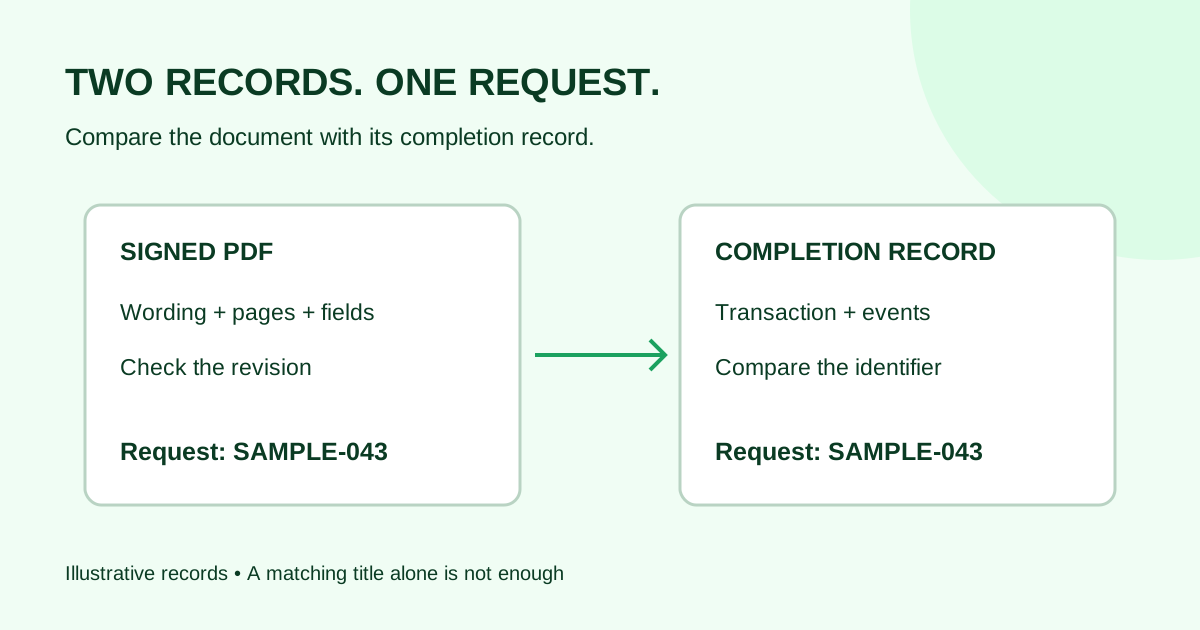
A signed PDF contains the document and its completed signing fields. A completion certificate records information about the signing transaction. Check both against the same request before filing them: a document title or familiar filename alone is not enough to establish that two downloads belong together.
This guide is for small agencies and service teams sorting completed records. It explains a practical comparison, not whether a signature or agreement has a particular legal effect. Certificate names, contents and download options vary by provider.
What each record tells you
| Record | What to look for | What it does not replace |
|---|---|---|
| Signed document PDF | Document wording, revision, complete pages and completed fields | The transaction’s activity record |
| Completion certificate | Request identifier, transaction details and recorded events, as provided by the service | The actual document wording and attachments |
| Completion notification | A notice that directs you to the relevant request or download | A check of the downloaded files themselves |
| Internal document register | Your project reference, file locations and responsible owner | The original records exported by the signing service |
For a concrete vendor example, Docusign’s Certificate of Completion guide describes envelope-identifying information and envelope events, including the envelope ID, subject and originator. These are Docusign details; they are not a claim that Demand Signatures produces an identical certificate.
The distinction matters when several requests share a title. Two files called “Website SOW” may come from different sends. Compare the available transaction reference in the service and exports, then inspect the document itself.
A five-step download check
- Open the completed request in the service. Confirm its actual status, intended recipients and document title. Record the request reference before downloading.
- Identify the available exports. Look for the signed document and any separate certificate or activity report. Do not assume every provider uses the same label.
- Read the signed PDF. Check the expected revision, all pages and completed fields. A final-looking filename does not tell you whether you downloaded the right copy.
- Match the transaction record. Compare its identifier with the request you opened and any identifier displayed in the signed document. If an identifier is not printed on the PDF, use the service’s request-to-document association; do not invent a match from filenames.
- Save a clear association. Keep the original exports together in the appropriate controlled project folder and record their locations in your register.
Do not edit a certificate to make its details match a PDF. If records disagree, preserve both and ask the sender or service support to locate the correct exports.
Worked example: two files with the same title
The following fictional example uses deliberately simplified identifiers, not a real customer’s records.
An agency receives a completed website statement of work for Harbor, revision 3. Its downloads folder already contains revision 2 from an earlier request. Both requests used the subject “Harbor website SOW.” The operations owner needs to file the correct signed PDF and transaction record.
| Check | Current completed request | Older downloaded certificate | Decision |
|---|---|---|---|
| Subject | Harbor website SOW | Harbor website SOW | Same subject is inconclusive |
| Request reference | SAMPLE-043 | SAMPLE-042 | These records do not belong together |
| Document revision in the request | Revision 3 | Not established by this older certificate | Open the PDF associated with SAMPLE-043 |
| Next action | Download records from SAMPLE-043 | Preserve with the earlier request | Retrieve the matching current certificate, if available |
After downloading from SAMPLE-043, the owner checks that the signed PDF contains revision 3’s approved page 2 schedule and every expected page. They then compare the new certificate’s request reference with SAMPLE-043. The register links both files to that request; it keeps SAMPLE-042 as a separate earlier record.
This check catches a specific filing error: pairing the newest document with an older certificate merely because their subjects match. It does not decide the legal relationship between revisions.
For the storage step, use the completed-document filing guide. That guide covers naming and retrieval; the comparison above establishes which records should be filed together.
If the certificate is missing from the PDF
A missing appended certificate does not, by itself, tell you whether the request completed. First inspect the request status and available download options.
Docusign’s download guidance notes that a certificate may be absent from a combined PDF because of an account setting. That is one provider-specific explanation, not a universal diagnosis.
Try this sequence:
- Check whether the service offers the certificate as a separate download.
- Confirm you are viewing the intended request and have access to its records.
- Ask the sender or service support which export contains the transaction details if the option is unclear.
- Record what you actually received. Do not label a missing report as verified or manufacture a substitute.
Avoid printing and rescanning files just to bundle them. Preserve the original exports and use folder organization or your document register to associate them.
Handling a mismatch without losing the trail
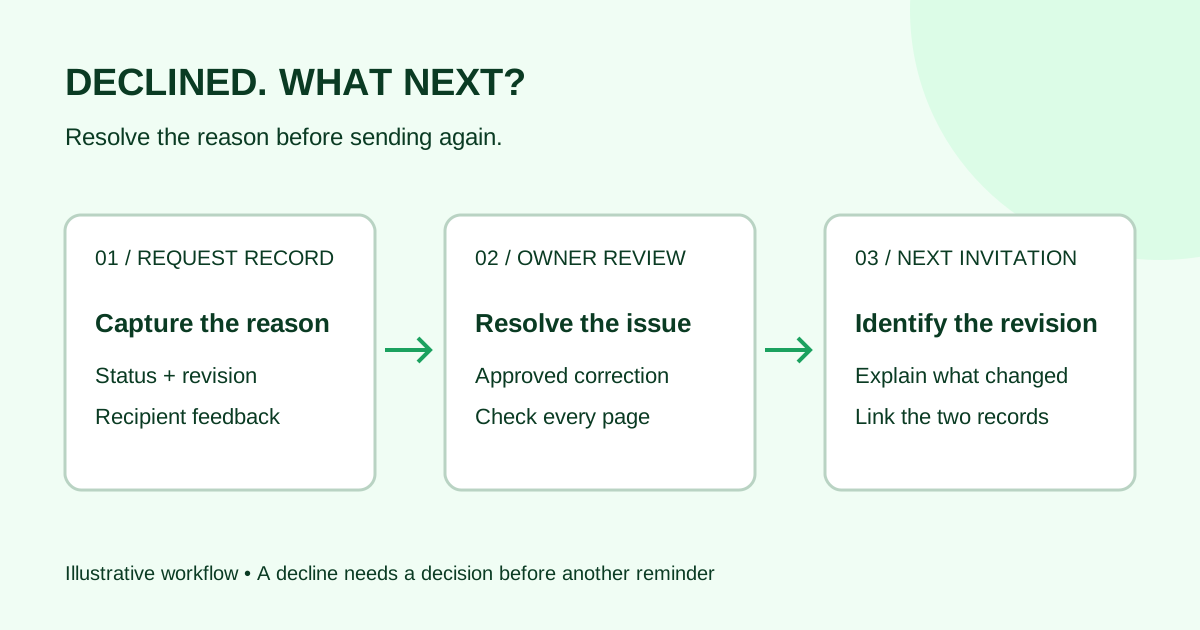
If the document and certificate show different request identifiers, stop the filing step and investigate. If recipient details or dates look unexpected, compare the service record and displayed time zones before drawing a conclusion. A discrepancy is a reason to check, not proof of a particular cause.
Give the responsible sender a short, factual message:
I’m checking the completed records for [project and revision]. The signed document was downloaded from request [reference], but the accompanying certificate shows [different reference or specific discrepancy]. Please confirm the correct request and provide its original document and transaction-record exports, if available.
Share records through your normal controlled channel. Certificates can contain recipient or transaction information, so avoid posting them or personal signing links in public support threads.
If the underlying document itself is wrong, route that issue to the document owner. Re-pairing files cannot correct document wording or move an earlier signature onto a different revision.
Common questions
Is a completion certificate the same as the signed contract?
They serve different purposes. The signed document contains the document text and completed fields; the certificate describes the transaction as recorded by the provider. Review the document when you need its wording, and the transaction record when you need its recorded activity details.
Must they be in one PDF?
Follow your organization’s record-handling process and the service’s export options. For practical retrieval, separate original files can be associated through the same request reference and folder. This guide does not establish a legal retention or submission requirement.
Can I match them by filename?
Use filenames as a navigation aid, not the sole match. Compare the actual request reference and the document association in the signing service. Titles and filenames may be reused across revisions.
Does the certificate prove that the agreement is legally valid?
This comparison does not make that determination. Questions about legal effect or disputed signatures need the appropriate adviser and the complete facts, not a filename or checklist verdict.
Sources checked October 14, 2026: the two Docusign user guides linked above. The comparison checklist and Harbor example are original editorial guidance. No Demand Signatures certificate-export capability is asserted.
For your next approved PDF, open the Demand Signatures upload workflow; sign-in is required.
Comments
Questions and notes from readers. Every comment is reviewed before it appears.
Comments are unavailable right now. Please try again later.
Leave a comment